Overview and Access
Vocareum provides various online virtual lab environments, including the programming lab environment that we will be using in this course. Using Vocareum requires a subscription fee that will be charged directly to your eBill via Auburn’s All Access program. Do NOT go to the Vocareum website directly to sign up or pay. Instead, your Vocareum account will be automatically created when you access the Vocareum activity via the “Load in a New Window” button at the bottom of this page. This will load Vocareum and you will be prompted to enter the access code that was given to you in an email from the AU Bookstore. This will not only activate your Vocareum account, but it will also link your Vocareum account to your Canvas account, and will automatically post the scores you earn in Vocareum to the Canvas gradebook for this course.
Using Vocareum
This activity is designed to give you a first experience working with Vocareum as you will for hands-on activities, assignments, and lab tests in this course. When you click on the ‘Open in new tab’ button in Canvas, a separate browser tab will open with this activity loaded in your Vocareum account.
User Interface
The Vocareum user interface for this activity is divided into three columns. The left column is a file browser, the right column is an information display, and the middle column contains a program editor (top pane) and a terminal/console (bottom pane). Spanning the top of all three columns is a panel with action buttons.
- File browser: Navigate the files and directories associated with the
activity. Available actions include refresh the files list, upload to the
selected directory, download the selected directory or file, copy the
selected directory or file, delete the selected file, create a new file or
folder in the selected directory, and rename the selected file. Two
directories (folders) are particularly relevant to your direct interaction:
resource/startercode: Contains files provided as part of the activity.work: The current working directory for your activity. This directory contains the source code that you are currently editing and working with, plus associated files that may be accessed or generated.
- Information Display: Displays an associated “readme” file (if one exists) or the most recent grade report (if available). While the most recent grade report must be explicitly loaded by clicking the Grading Report action button, the Information Display will automatically load the readme file. The readme can be explicitly loaded by clicking the Readme action button. If there is no readme file and no grade report, the Information Display will be collapsed and not visible.
- Program Editor: Provides a syntax-aware editor for Java. Clicking on a file in the file browser loads the file in the program editor.
- Terminal/Console: Provides a command line interface to a Linux virtual
machine on which all your work is being done. Since this is a full console
running Bash, you may like
to work directly at the command line. The terminal/console will always display
anything printed to
stdout, including the output of submission and grading scripts. - Action Buttons: Provide actions available for the activity in Vocareum.
Most of the actions have been described above in the context of the user
interface; here are the remaining actions:
- Submit: Submits the currently-saved files in the
workdirectory for grading. Each activity, assignment, and lab test allows unlimted submissions, so you can submit as often as you like. Note that a side effect of this action is that the Information Display is changed to show the resulting grading report. - Build: This action is currently not functioning, so do not click Build. Just click Submit.
- Submission Report: Raises a pop-up window displaying the results of the most recent submission.
- Grading Report: Raises a pop-up window displaying the results of the grading of the most recent submission. This often results in a message stating that there is no report available, but that’s ok. Full grade information is available using the next action button…
- Grades: Causes the Information Display to load the grading rubric and scores for the most recent submission.
- Reset: Deletes all content in the
workdirectory and replaces it with the original files inresource/startercode. - Full Screen: (Icon) Maximizes the browser window to full screen.
- Submit: Submits the currently-saved files in the
When first loading this activity in Vocareum, the interface should look essentially like the following:
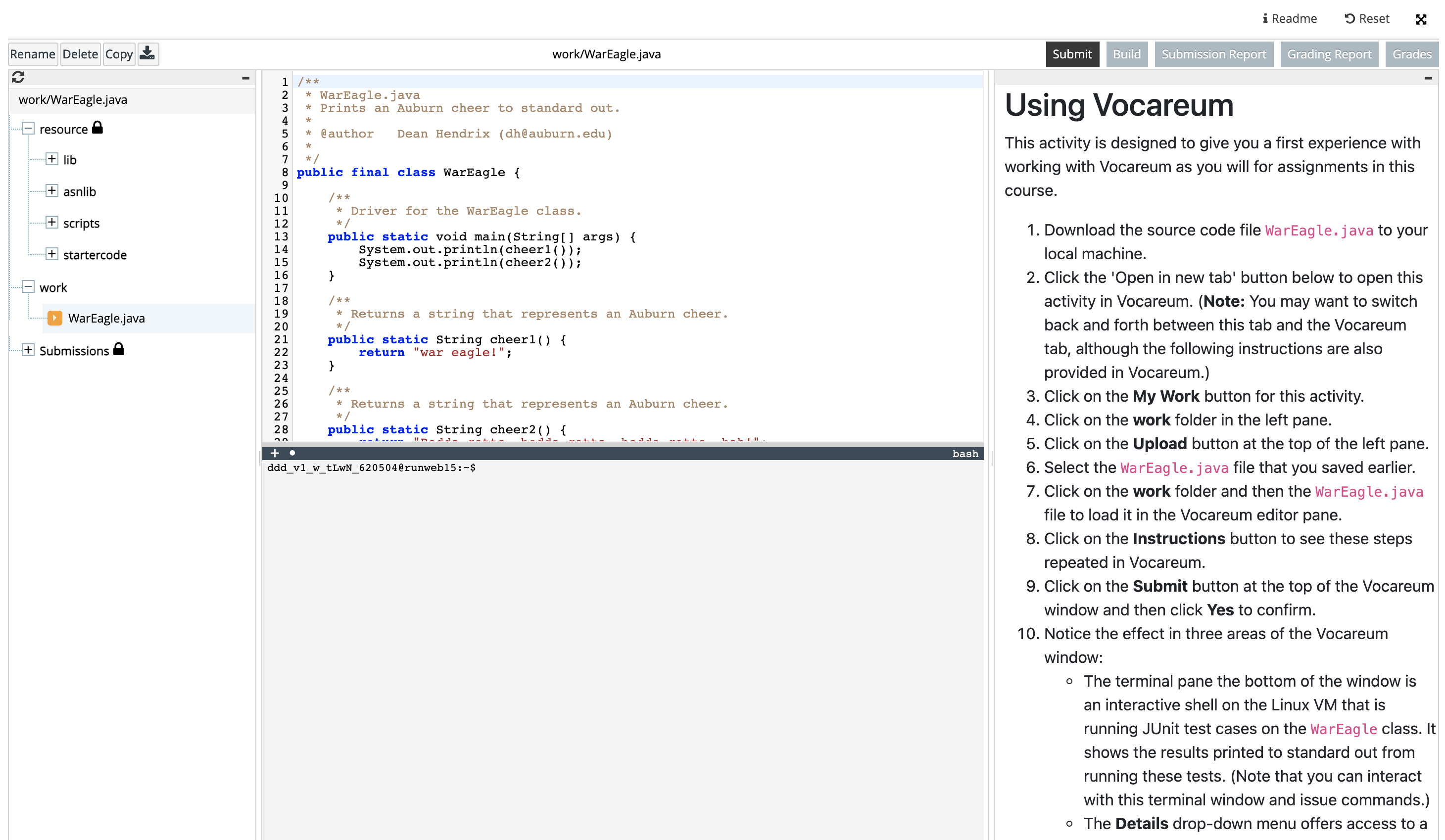
If your interface looks significantly different, please alert a course staff member.
Getting Started With the Activity
The overall goal of this activity is for you to get comfortable completing
programming activities and having them graded by Vocareum. The specific task for
which a grade will be assigned is modifying the WarEagle class so that it
passes all test cases and earns full points.
- The source code file
WarEagle.javashould be already loaded in the editor, but if it is not, open theworkfolder in the file browser and click on theWarEagle.javafile. - Click on Submit. You will be prompted to confirm your submission. Before doing so, recall that making a submission will cause the Information Display to show the grading report, and these instructions will no longer be visible. To see these instructions again, simply click on the Readme action button. Now click Yes to confirm your submission.
- Notice the effect in the Information Display and the terminal/console. Be sure you understand the correspondence between the output shown in the terminal and the scores shown in the grading rubric.
- Click on Submission Report to see the results of running the submission and grading script. Be sure that you understand how you can use the contents of the submission report as a guide to modifying the source code.
- At this point you probably want to click on Readme so that these instructions are once again in the Information Display.
Now your task is to modify the WarEagle source code to make it pass all tests
and earn the full points available. You can do this completely within the
Vocareum environment or you can do the programming, testing, and debugging on
your own machine and simply use Vocareum for grading. To work completley within
Vocareum, simply use the programming editor (or vim in the terminal/console) to
edit the file and then submit as often as you want. If you prefer to work on
your own machine, then download the source code, work in the editor/IDE of your
choice on your own machine, and then upload and submit as often as you like. I
think you will find that each approach is suited to different situations and
that you will want to be comfortable using either approach. For example, many
hands-on activities (like this one) and lab tests are more easily done all
within Vocareum, while almost all assignments are better done on your own
machine using the IDE of your choice.
Spend some time practicing both approaches. Be sure to make a few intentional mistakes, including syntax errors, so that you get comfortable with the way that submissions to Vocareum work and with the feedback that you receive after each submission. Remember that you can use the Reset action button to revert back to the starter code; this might make repeated practice easier.